
Almost every community handles ban appeals the same awkward way: a second “appeal server” the banned user has to join, a Google Form that drops answers into a spreadsheet nobody reads, or a DM thread that lives and dies in one moderator’s inbox. The appeal never connects back to the original case, and once it’s resolved the whole conversation evaporates.
Archivian takes a different stance: an appeal is part of the moderation record, not a bolt-on. Every appeal is tied to the case it’s about, lives in the dashboard, and carries its own conversation, assignment, and status — for as long as the case exists.
A user never leaves the platform to appeal
When someone is moderated, they don’t have to hunt down an invite to your appeal server. The appeal flow is right where they already are.
They're notified of the case
If you enable it, the case notification can include a button that drops the user straight into the appeal flow for that specific case.
Or they open their personal dashboard
Every Archivian user has a personal dashboard. From it they can browse the cases made on them (where your server allows it) and start an appeal from any case that’s eligible.
Even for bans that predate Archivian
A banned user can check whether they’re banned in your server and appeal retroactively — Archivian creates the case record on the spot if it doesn’t already have one, so old bans are appealable too.
They write their appeal
The user submits their case for reconsideration. Only one open appeal can exist per case at a time, which keeps the queue honest — no spamming five appeals on the same ban.
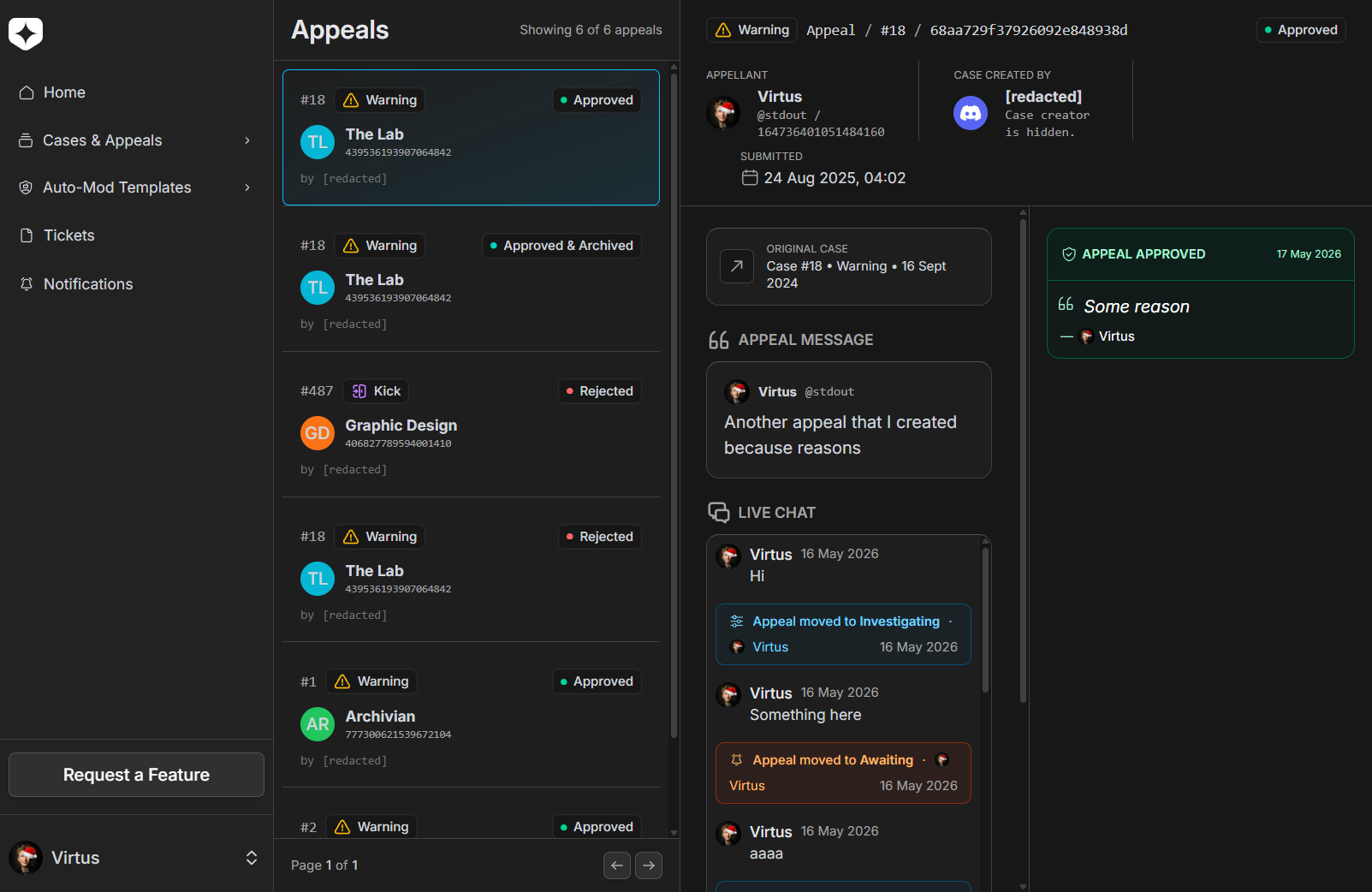
The whole conversation happens inside the appeal
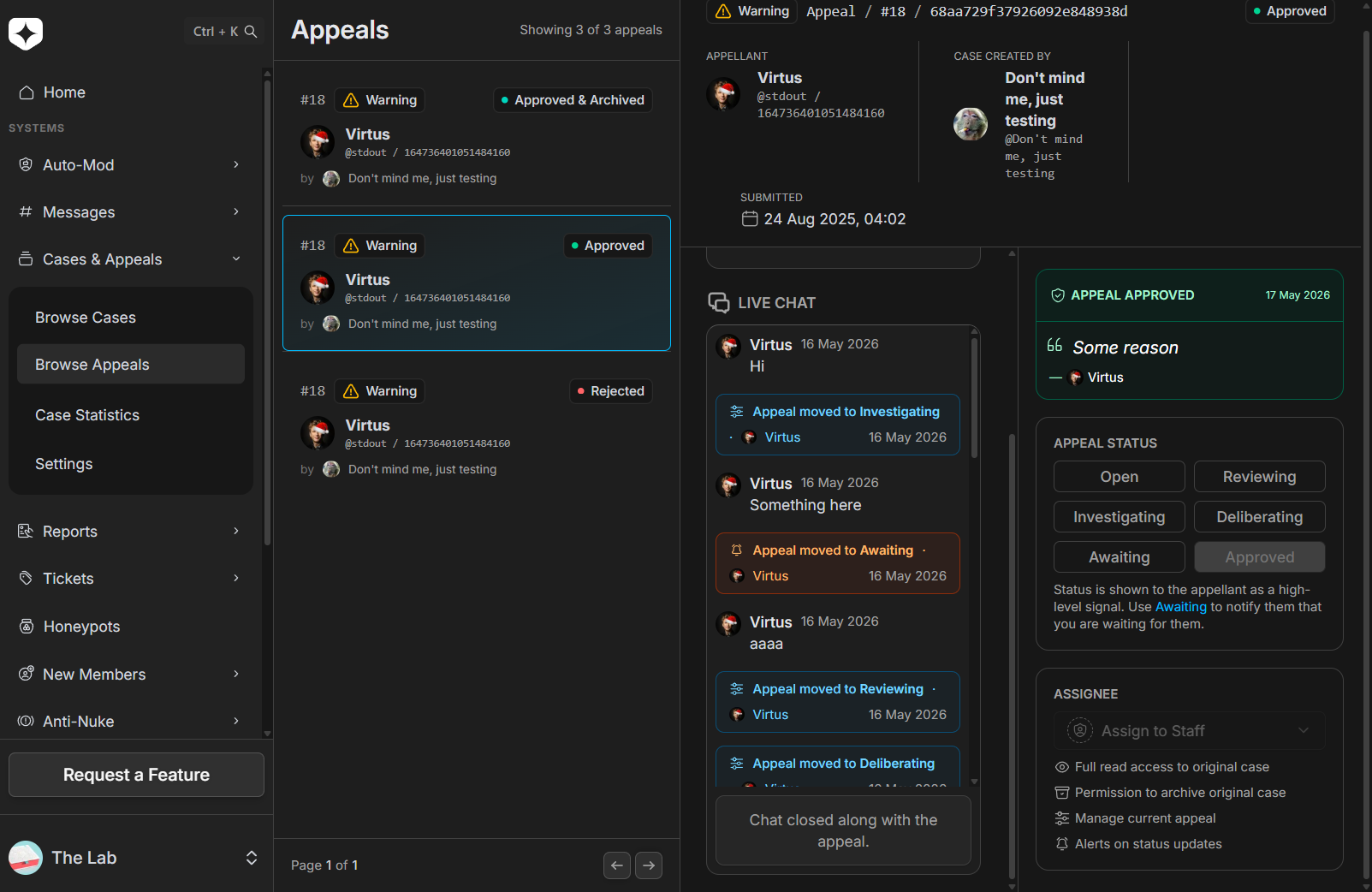
The single most useful piece is the appeal chat: a built-in, two-way conversation between your staff and the appealing user, attached to the appeal itself.
Status changes show up inline in that same chat as events, so the user sees the story of their appeal in order — “moved to investigating”, “moved to awaiting your reply”, and finally the verdict — right alongside the messages. You can enable chat by default or turn it on per appeal.
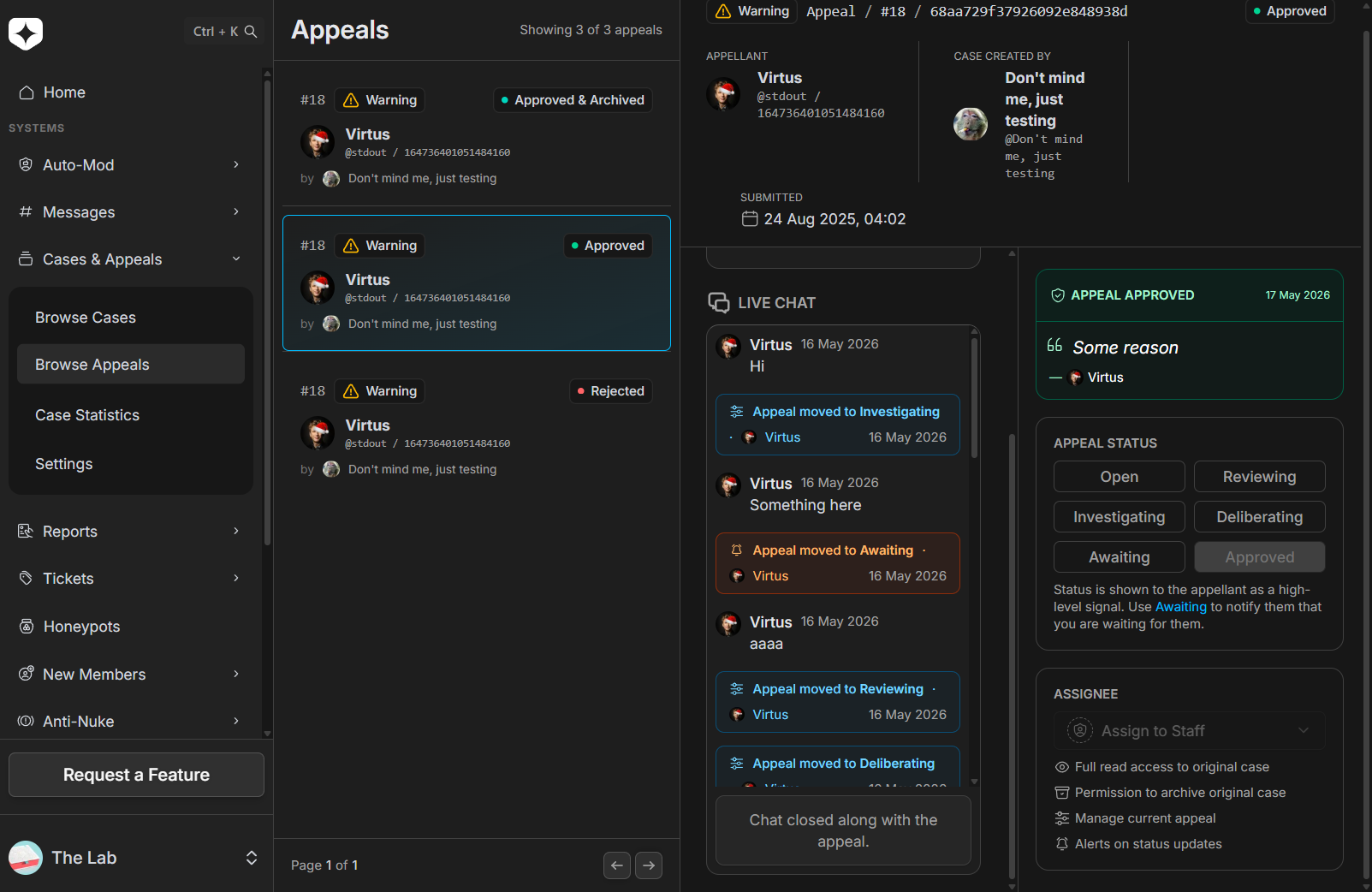
Assign it to someone, and access follows
Appeals don’t have to be a free-for-all. Assign a specific staff member to an appeal and two things happen automatically:
- They’re alerted through whichever channels they’ve opted into — dashboard, email, and/or Discord.
- They’re granted access to read and edit that appeal and to read the original case — no separate permission juggling.
If an assigned handler goes quiet, Archivian will nudge them: when the appealing user sends a new message, an assigned staffer who hasn’t acknowledged it gets a follow-up notification a few minutes later (and only once, until they’ve read it).
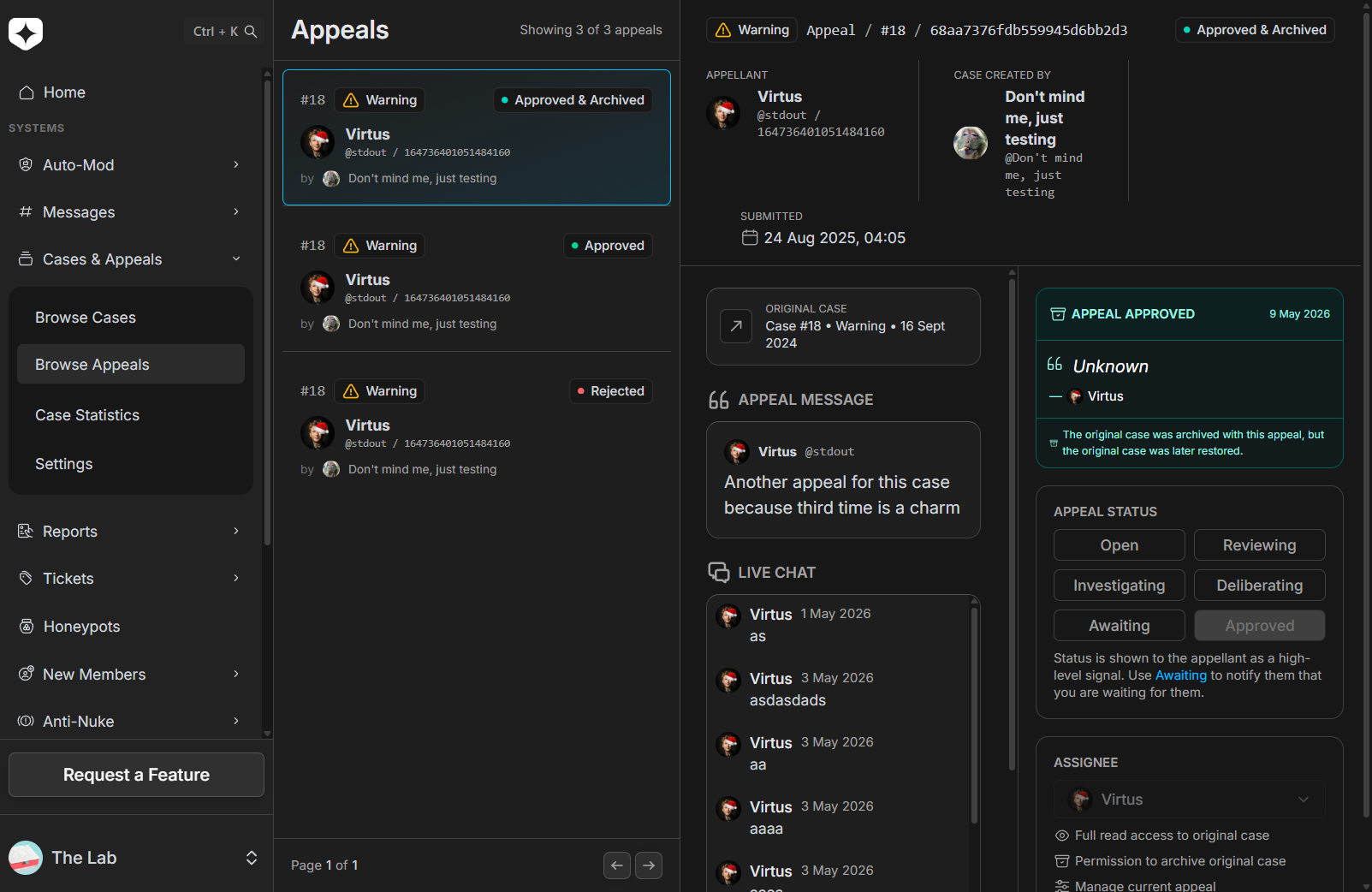
Accepting an appeal undoes the punishment for you
This is where “built-in” really pays off. When a staff member accepts an appeal, Archivian doesn’t just mark it resolved — it executes the reversal.
The verdict itself is final and recorded on the case — who decided, when, and their closing message — and an appeal that’s reached a verdict can’t be quietly edited afterward.
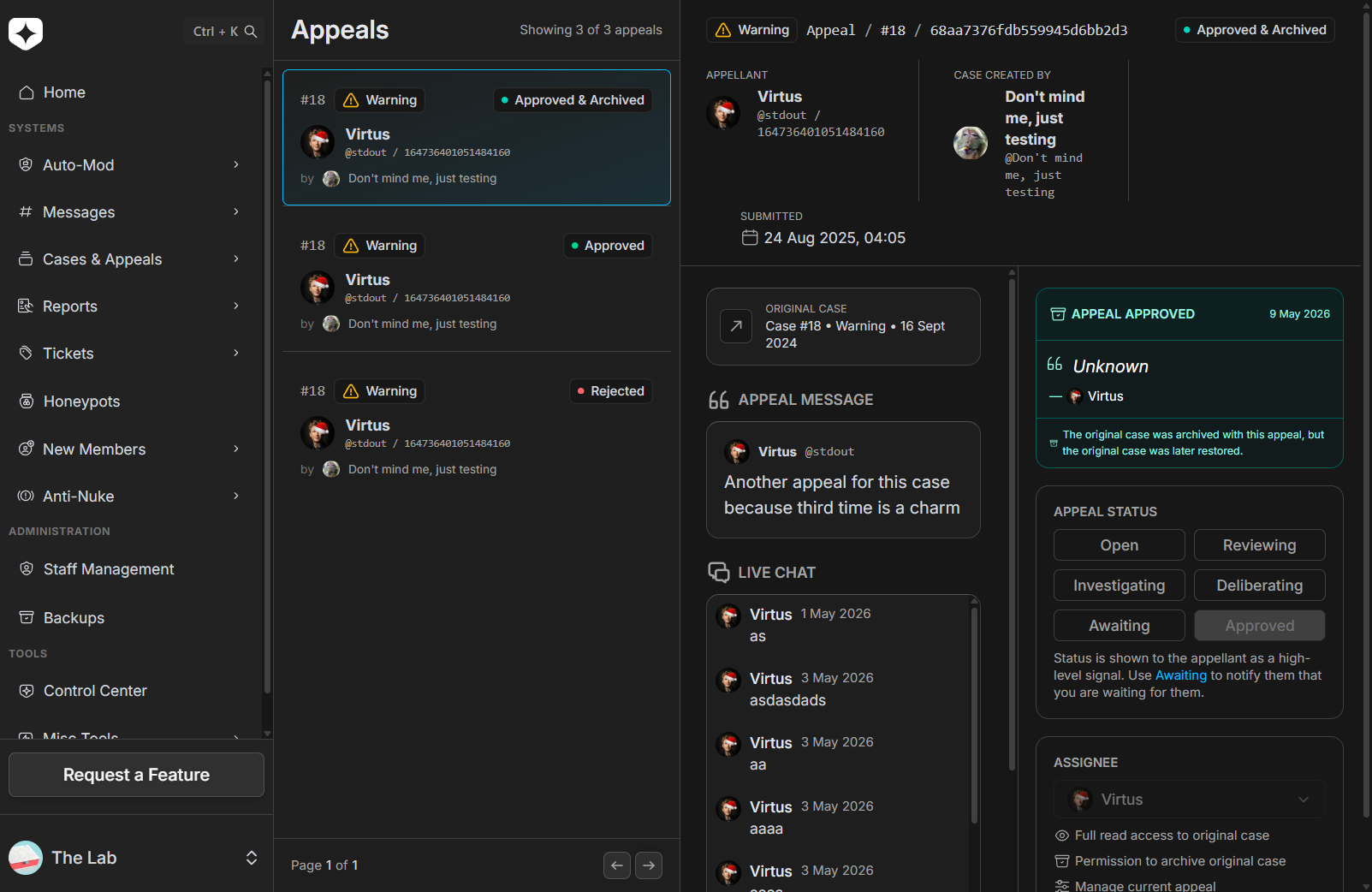
Keep the user in the loop — without overcommitting
Real appeals take time. Archivian gives you a set of working states to move an appeal through, so the user always knows where things stand instead of staring at silence.
An appeal moves from open through working states like reviewing, investigating, deliberating, and awaiting (waiting on the user), before reaching a verdict: approved, rejected, or case-archived. Users can opt in to be alerted when the status changes, so “we’re still looking into it” is a status update, not a promise someone has to remember to send.
You decide what’s appealable
Appeals are configurable per case type, with per-case overrides on top.
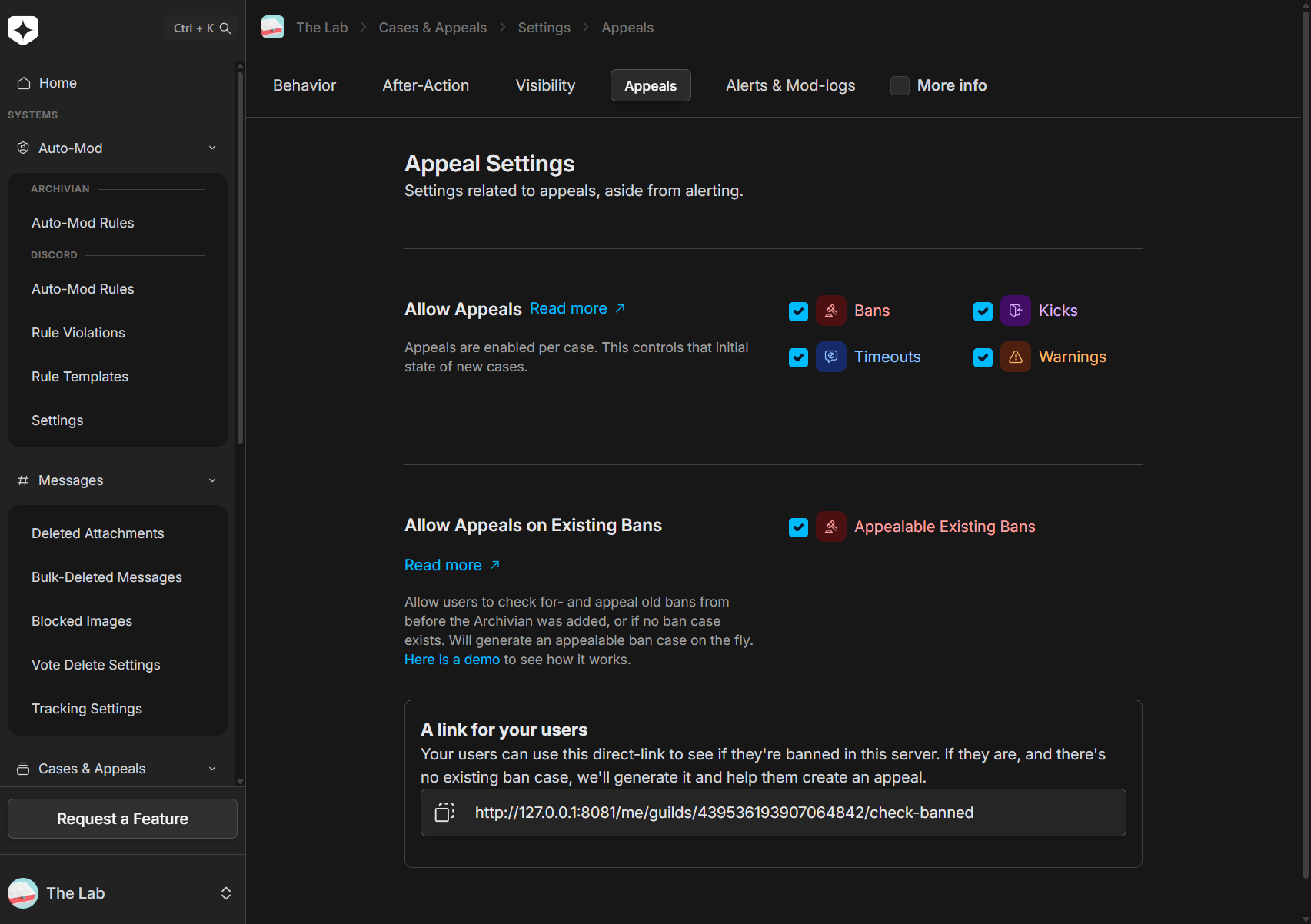
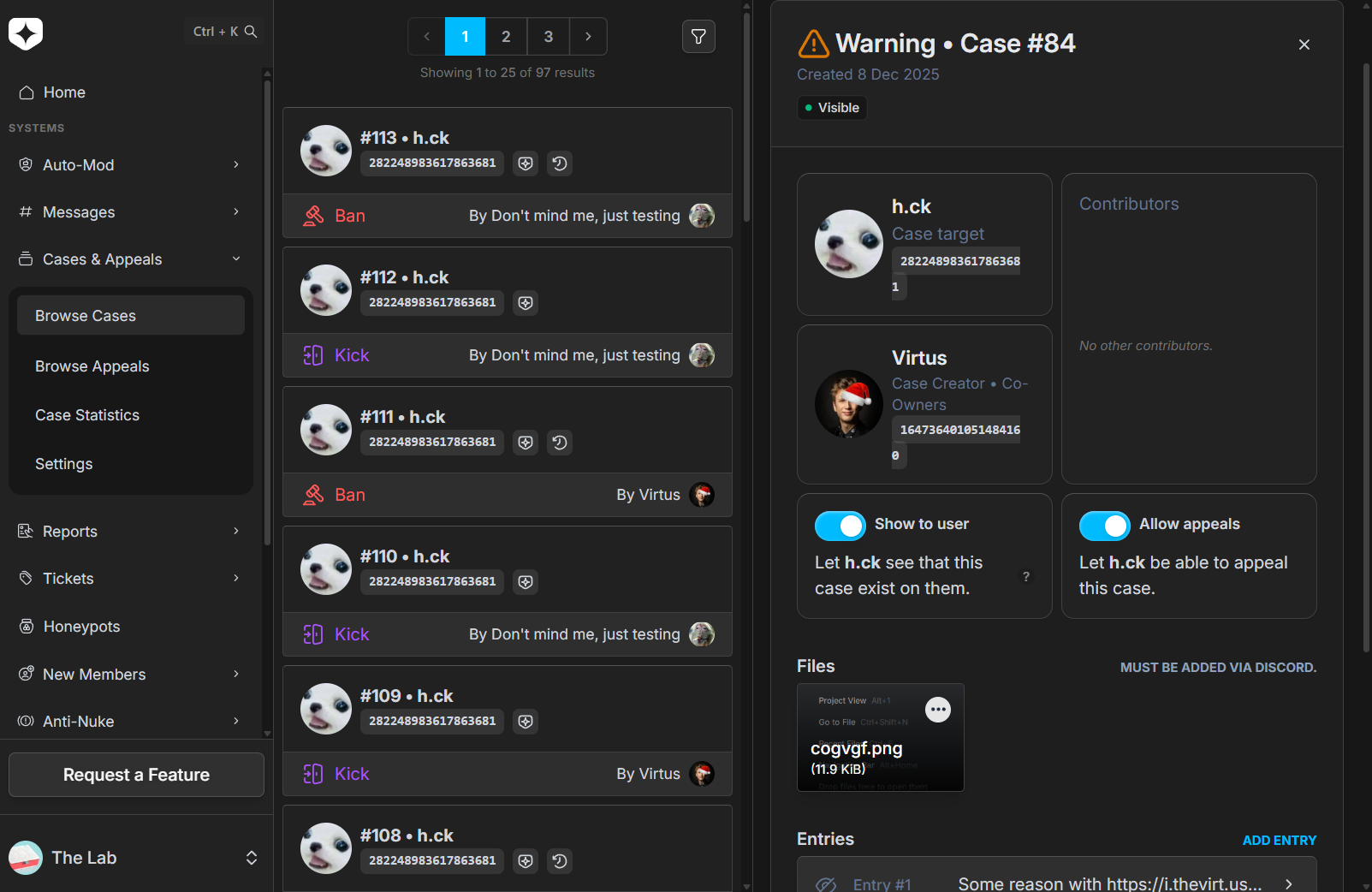
- Enable or disable appeals per case type (notes aren’t appealable).
- Override that setting on individual cases.
- When you reject an appeal, you can optionally deny further appeals on that case — which locks it — and you can lift that lock again later.
Why it matters
Bolt-on appeal workflows leak context at every step: the appeal doesn’t know about the case, the conversation isn’t saved, and the unban is a manual afterthought someone forgets to do. Archivian closes that loop — the appeal, the conversation, the decision, and the actual unban all live on the case, and they stay there.